Objective
Understand the enhanced security, recording consent, and meeting ingestion controls available for Kaia for Microsoft Teams.
Kaia can be configured to:
- Join meetings live (real-time participation), or
- Analyze recordings after the meeting ends (post-meeting ingestion)
For customers requiring explicit participant consent, Kaia can be configured for post-meeting analysis of recordings captured natively in Microsoft Teams, ensuring Microsoft’s explicit consent policy is enforced.
Microsoft’s explicit consent policy ensures consent is obtained from every meeting participant before recording, with auditable confirmation in Teams attendance reports. Using Microsoft’s native consent mechanism is the only reliable way to meet strict legal requirements for explicit consent.
Applies To
- Outreach Admins
Overview
Kaia for Microsoft Teams now supports separate controls for Live participation (online) and Post-meeting (offline) recording ingestion, managed at the governance profile level.
This allows admins to:
- Enable or disable Kaia Live participation (real-time meeting join)
- Enable or disable Post-meeting recording ingestion
- Enforce Explicit Consent (Microsoft Teams) where required
How Ingestion Modes Work
Kaia Live (Real-Time Participation)
- Kaia joins the meeting as a participant
Post-Meeting Recording Ingestion
- Kaia does not need to join the meeting
- Teams records the meeting natively
- Kaia ingests and analyzes the recording after the meeting ends
For organizations requiring explicit consent, the recommended configuration is:
- Kaia Live: Disabled
- Post-meeting ingestion: Enabled
Requirements for Explicit Consent with Post-Meeting Ingestion
The following conditions need to be met in order to use Kaia for post-call analysis of meetings recorded in Teams with explicit consent:
- Kaia for Teams must have been set up successfully using the deployment option for “Admin deployment + User setup”.
- If this has not been done the setting in User Profiles to use Kaia post call analysis mode for Teams will not be available. (See step 5 below.)
- Using Kaia for Teams in post-call analysis mode is supported for non Admin users in Outreach with a license to use Kaia.
- Outreach features, including Kaia live experience, cannot be disabled for Admin users.
- Users need to have a policy to use explicit consent when they record meetings set up inside Teams following the guidance provided by Microsoft. For additional help on configuring Teams please contact Microsoft directly.
- Users need to have a policy that allows recording and transcription set up in Teams for Kaia to get data identifying speakers during a meeting following the guidance provided by Microsoft. For additional help on configuring Teams please contact Microsoft directly.
- Microsoft only supports sharing recordings with apps like Kaia for "standard" Teams meetings based on Office365 calendar events.
- Supported Teams Meetings
- Teams meeting is created using the Outreach Calendar and the user's Outreach Calendar connected to their O365 Calendar with Teams set as their web conf app.
- Teams meetings created using Outlook with the user's Outreach Calendar connected to their Office365 Calendar.
- Teams meeting created using Teams with the user’s Outreach Calendar connected to their Office365 Calendar.
- Non Supported Teams Meetings
- Teams meetings created using a user’s personal Teams meeting room.
- Teams meeting created in Teams by inviting a Teams channel
- Teams meeting created using Google Calendar using the Microsoft Teams meeting add-on for Google Workspace and the user's Outreach Calendar connected to their Google Calendar.
- When using the Microsoft Teams meeting add-on for Google Workspace there are known limitations that make Teams features unavailable, which also affect Kaia.
- Microsoft has suggested a possible workaround for this by connecting Teams to a Google Workspace, but it is complex to set up. Currently this approach has not been tested by Outreach.
- Supported Teams Meetings
Procedure
Configure Profile-Based Ingestion Settings
- Sign in to Outreach as an Admin
- Navigate to Administration > Users & permissions > Profiles
- Select the Profile assigned to users requiring explicit consent
- Scroll to the Kaia meetings section
Configure the following:
- Kaia Live (Microsoft Teams): OFF
- Post-meeting recording ingestion (Microsoft Teams): ON
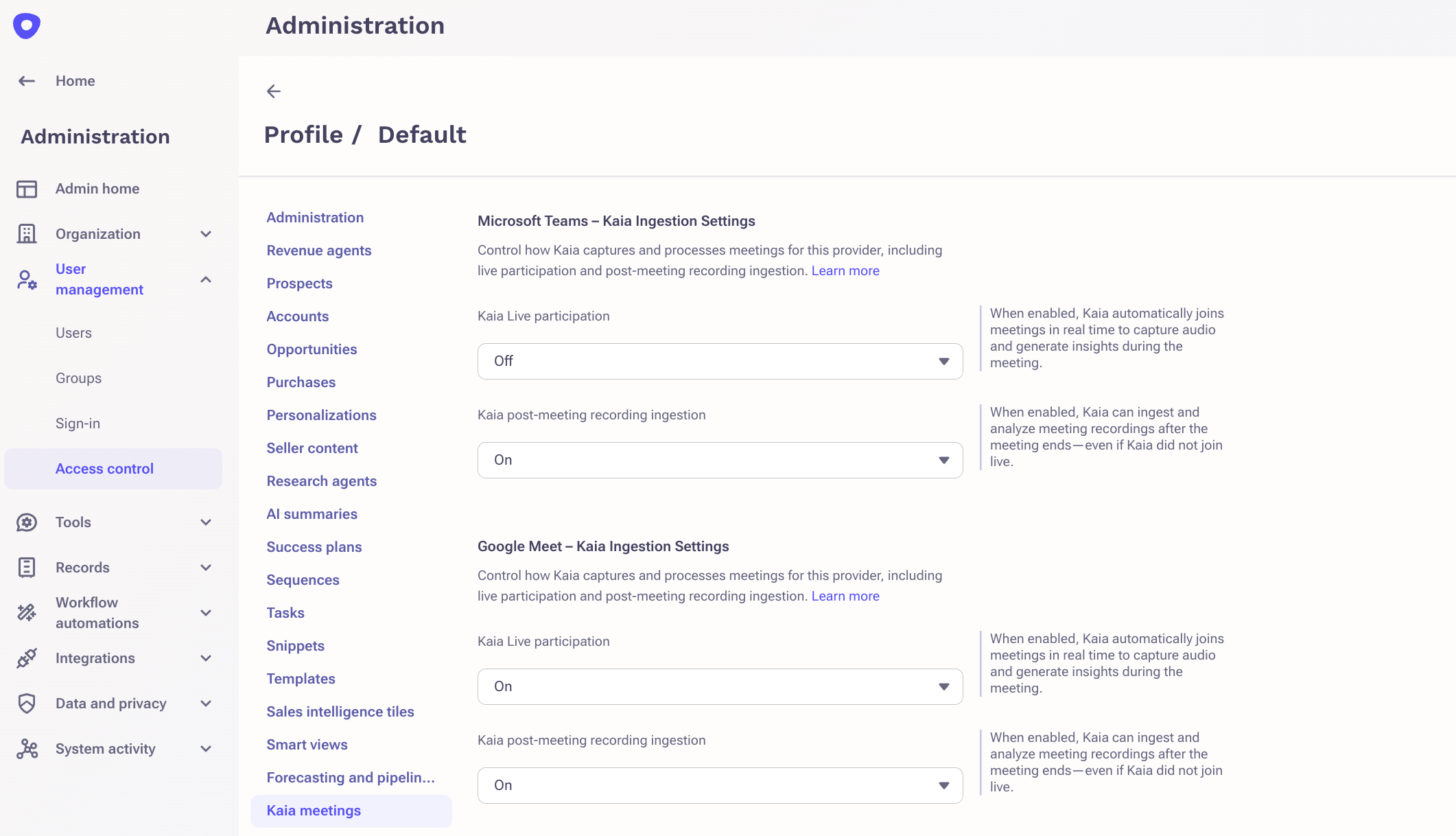
Note: If settings are not available then Kaia for Teams has not been set up successfully using the deployment option for Admin deployment + User setup.
Once a user has been assigned a profile configured for post call analysis of meetings recorded in teams they validate the setup by recording a meeting in teams that matches their Personal Settings for Kaia. (Either “When any meeting attendee is a prospect” or “When any meeting attendee is outside of your company”). This meeting should then become available to view on the Kaia recordings page. It can take up to 1h for a meeting to become available from Microsoft and then analyzed by Kaia.
Was this article helpful?
That’s Great!
Thank you for your feedback
Sorry! We couldn't be helpful
Thank you for your feedback
Feedback sent
We appreciate your effort and will try to fix the article